

Intro
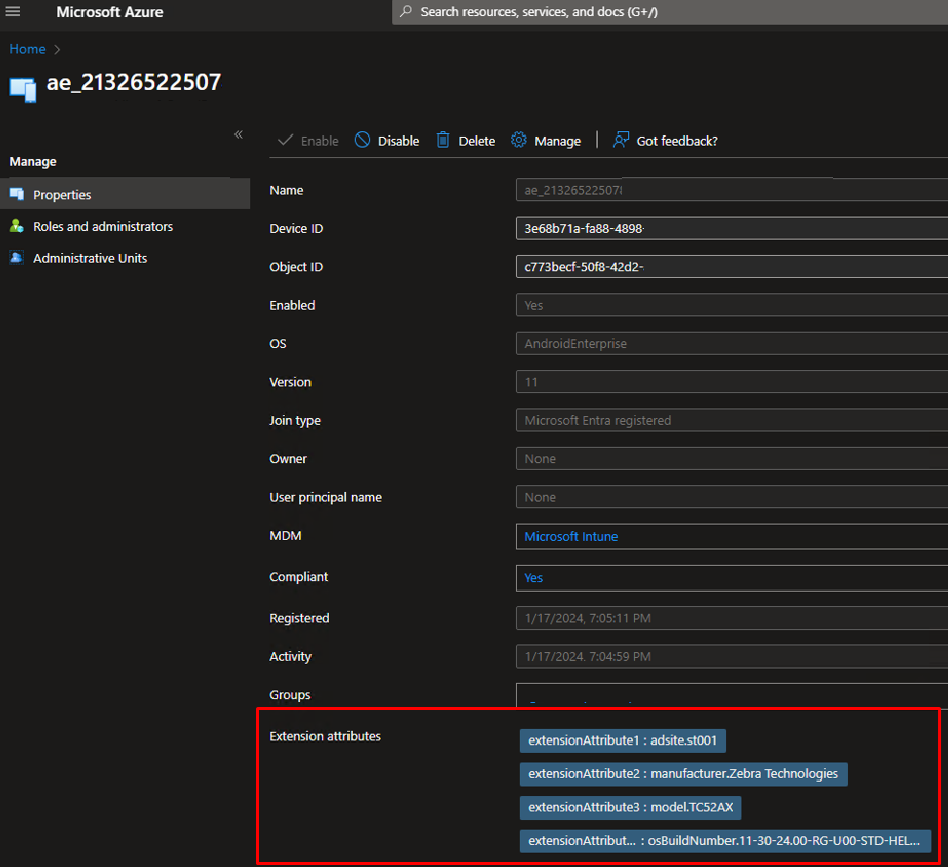
Intune presents a variety of Android device information in the device hardware section, and even more information in Graph. Everything that is available in the Android Enterprise cloud DPC is captured in Graph. What Intune does not natively do is give you the ability to create dynamic groups based on these attributes. Yes, you can manually export these devices with some of this information out, manipulate, then import directly to a security group, but this process is hardly an enterprise solution. What I will show in this post is how to export this data to an extension attribute of the Android device in Entra ID, which will then give you the ability to create dynamic groups querying this information.
- Logic App (Consumption is fine)
- Managed Identity setup with Graph device read/write permissions
- Azure Automation Account with Hybrid Worker
- Tenant needs Intune Plan 1 + Entra ID Premium P1 or M365/F3 or Educational
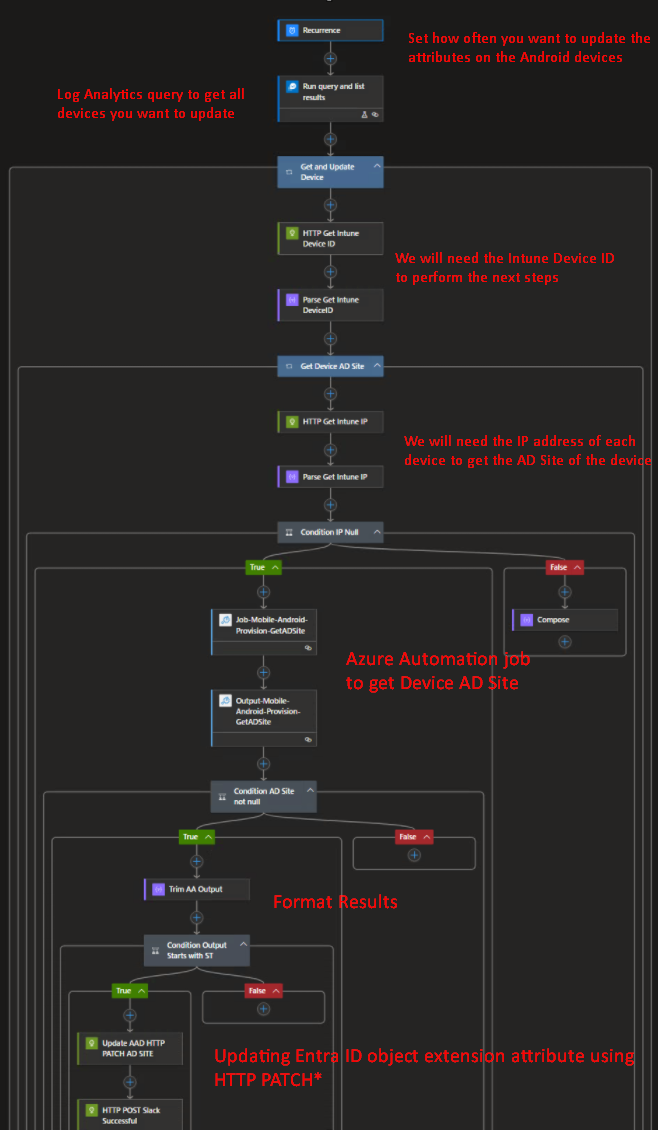
Logic App flow
How To
Step 1 – Create Logic App
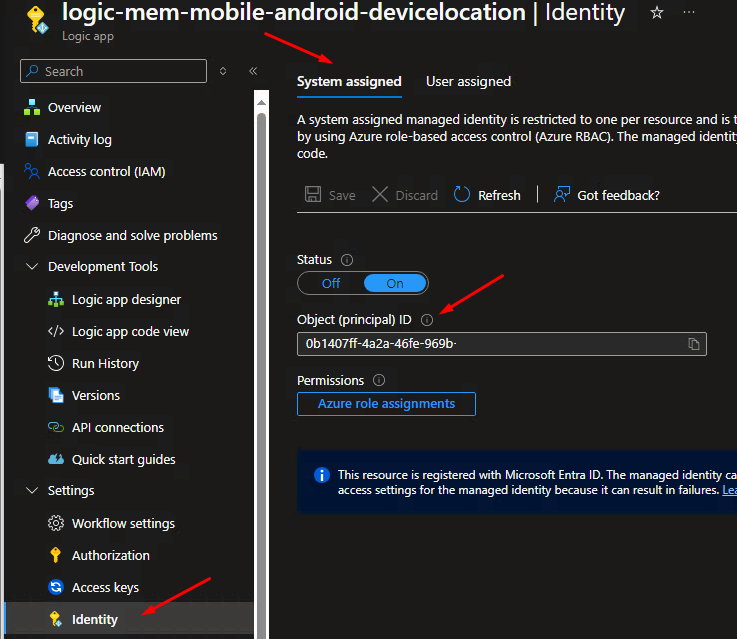
For this step we will create a Logic App using the consumption model. Alternatively, you can utilize Power Automate, but I prefer Logic App since you can assign the required graph permissions directly to the Logic App System Assigned Identity. See my Intune Device Rename post on how to assign Graph permissions to this managed identity.
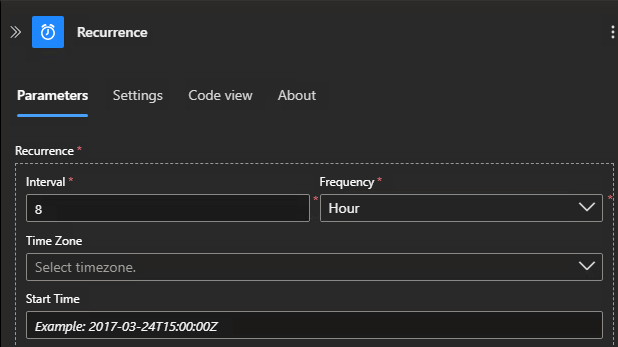
Step 2- Setup schedule / recurrence we want this job to update our devices. I like every 8 hours since I have almost 100k devices and AD sites in my environment rarely update for these devices.
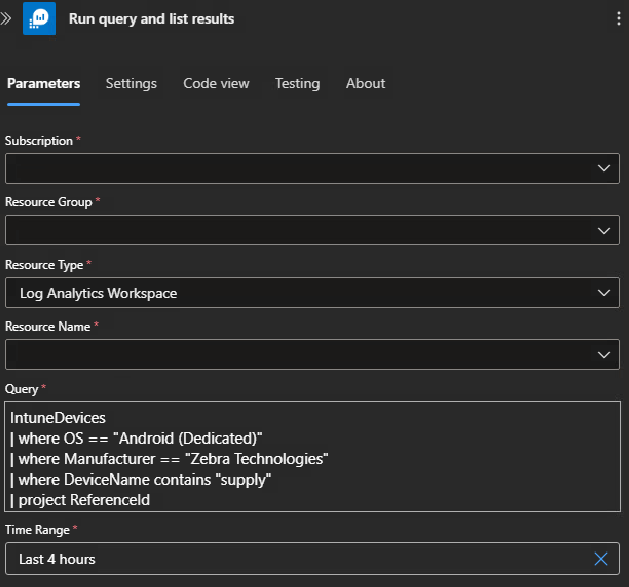
Step 3- Log Analytics query to get all devices you want to update the attributes on. Here is where you control which devices will be part of this workflow.
Step 4- Get Intune Device ID, we will need this further down the workflow.
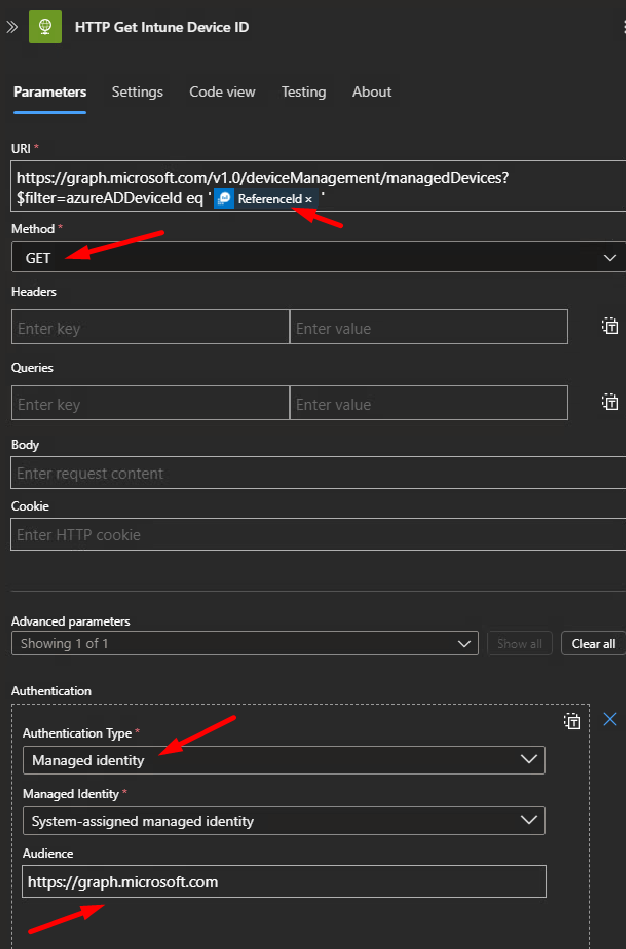
https://graph.microsoft.com/v1.0/deviceManagement/managedDevices?$filter=azureADDeviceId eq 'Insert Log Analytics Reference ID'Step 5- Parse Device ID
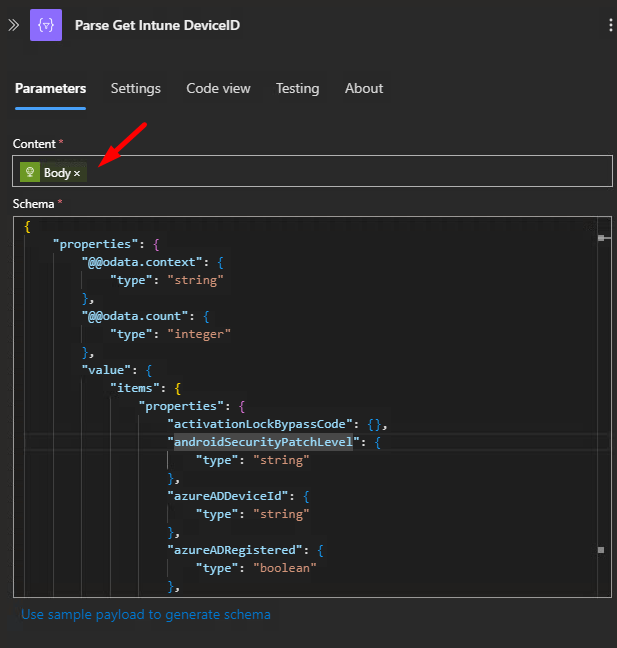
Sample Payload-
{
   {
    "properties": {
        "@@odata.context": {
            "type": "string"
        },
        "@@odata.count": {
            "type": "integer"
        },
        "value": {
            "items": {
                "properties": {
                    "activationLockBypassCode": {},
                    "androidSecurityPatchLevel": {
                        "type": "string"
                    },
                    "azureADDeviceId": {
                        "type": "string"
                    },
                    "azureADRegistered": {
                        "type": "boolean"
                    },
Step 6- Azure Automation job to get device AD Site
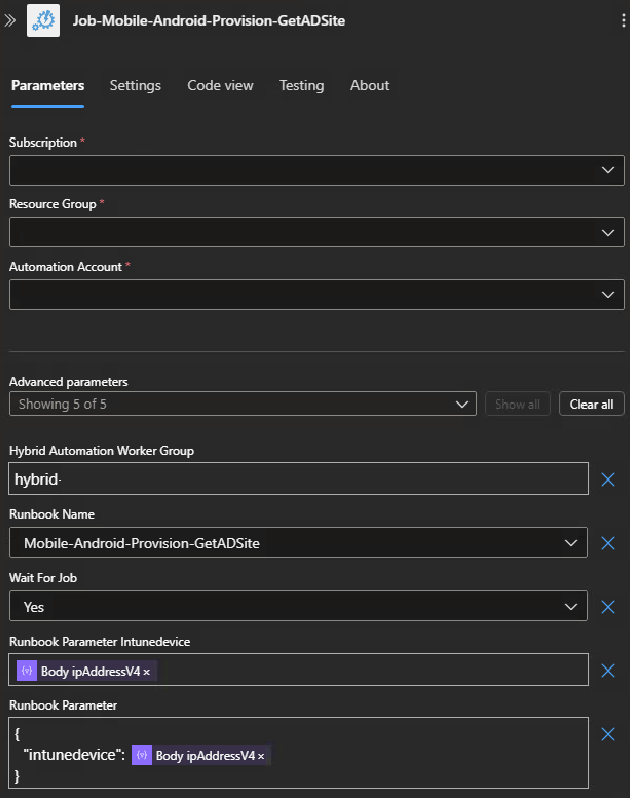

param(
$intunedevice
)
# Get AD site
$string = nltest /DSADDRESSTOSITE:$intunedevice
# Check if the string is empty
if ([string]::IsNullOrWhiteSpace($string)) {
    Write-Host "Error: empty string."
}
else {
    # Split the string into an array of words
    $words = $string.Split(" ")
    # Iterate through each word in the array
    foreach ($word in $words) {
        # Check if the word starts with "ST"
        if ($word.StartsWith("ST") -and $word.IndexOf(" ") -eq -1) {
            Write-Output $word
        }
    }
}
Step 7- Format / Trim Azure Automation results

Code View

{
  "type": "Compose",
  "inputs": "@trim(body('Output-Mobile-Android-Provision-GetADSite'))"
}
Step 8- This took a little while to figure out but we need to use PATCH when writing extension attributes through Graph
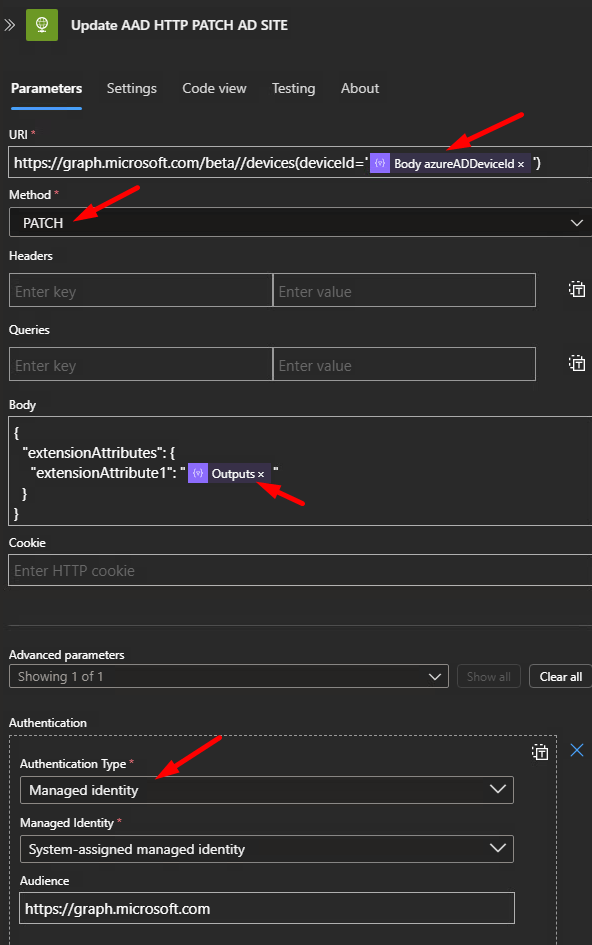
 Code view

{
  "type": "Http",
  "inputs": {
    "uri": "https://graph.microsoft.com/beta//devices(deviceId='@{items('Get_Device_AD_Site')?['azureADDeviceId']}')",
    "method": "PATCH",
    "body": {
      "extensionAttributes": {
        "extensionAttribute1": "@{outputs('Trim_AA_Output')}"
      }
    },
    "authentication": {
      "audience": "https://graph.microsoft.com",
      "type": "ManagedServiceIdentity"
    }
  }
}
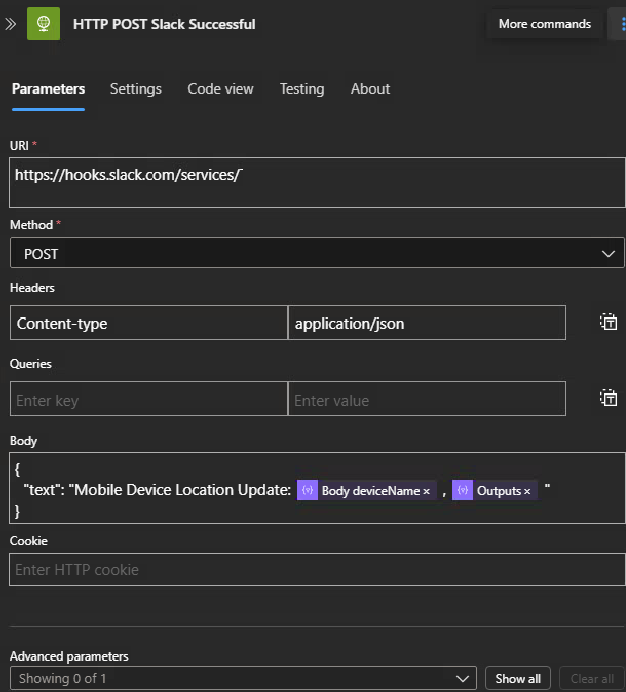
Step 9- Webhook to slack of a successful update
Step 10- Review Entra / Azure AD Device properties
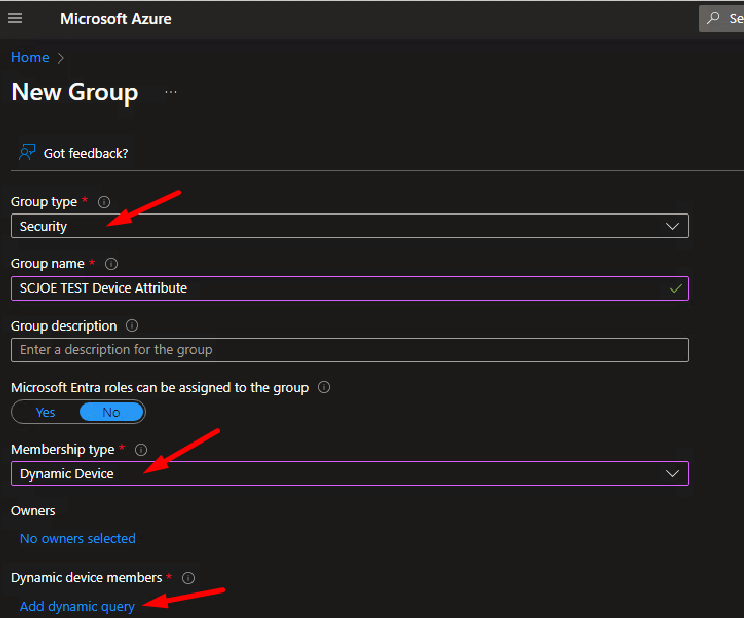
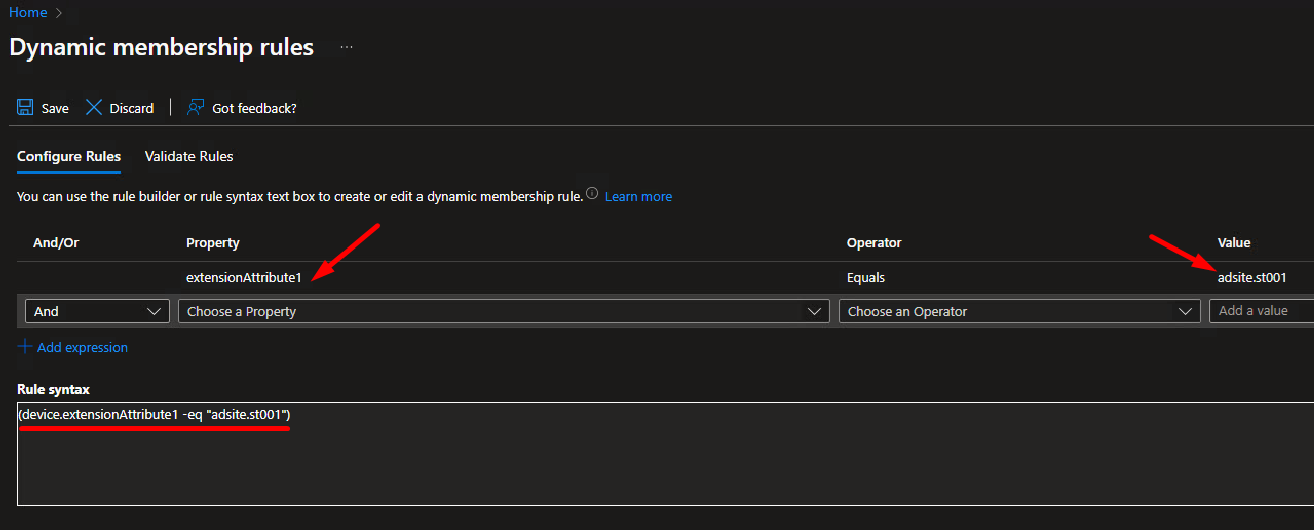
Step 11- Create Dynamic query based off extension attributes
Final Ramblings
We created a way to target device specific attributes using Logic App and Azure Automation. Now we can deploy Applications and Configuration Profiles to dynamic groups, whereas before we were limited to the OOB available attributes:

Sky is the limit with what is available in Graph to populate the extension attributes. However, we are limited to 15 Entra ID attributes, so use them sparingly and plan / standardize for the future.
I really wish Microsoft would have kept “Computer Groups” from when Log Analytics was first introduced in the OMS suite days. For those weren’t around Operations Management Suite which is where Log Analytics was born had a feature to create dynamic computer device groupings based on its Kusto/ SQL’ish language. If Microsoft expanded legacy Computer Groups to Intune and allowed mobile devices to be grouped dynamically from Kusto queries, the sky would be the limit since most attributes are readily available in Log Analytics.

-LL&P
 SC Joe